> ## Documentation Index
> Fetch the complete documentation index at: https://celonames.mintlify.site/llms.txt
> Use this file to discover all available pages before exploring further.

# Register with Self

> How to register a Celo Name using Self for free

<Warning>
  Availability and limits may apply. You must have a verified identity document (passport or national identity card) in your Self app to use this feature.
</Warning>

<Steps>
  <Step title="Head to Celonames App">
    Navigate to the [Celonames app](https://names.celo.org) and connect your wallet to the Celo network.
  </Step>

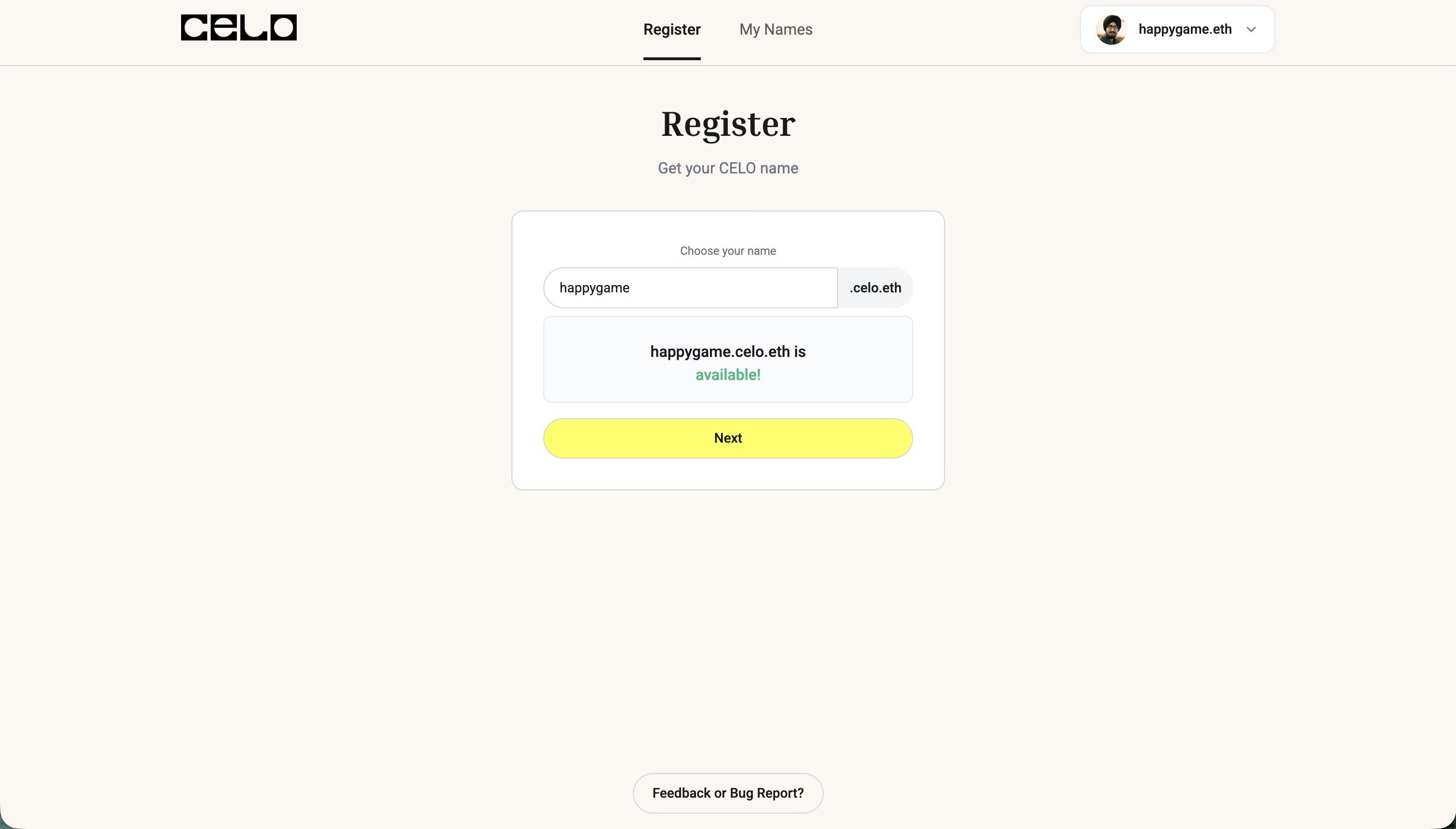
  <Step title="Search for an Available Name">
    Search for a name you'd like to register. The app will show you if it's available.
    <img src="https://mintcdn.com/celonames/UASCk6RdXS2PF30S/images/register/available.jpeg?fit=max&auto=format&n=UASCk6RdXS2PF30S&q=85&s=142e0789c02f750f2cab56d80c2f8b78" alt="Search for available name" width="3023" height="1721" data-path="images/register/available.jpeg" />
  </Step>

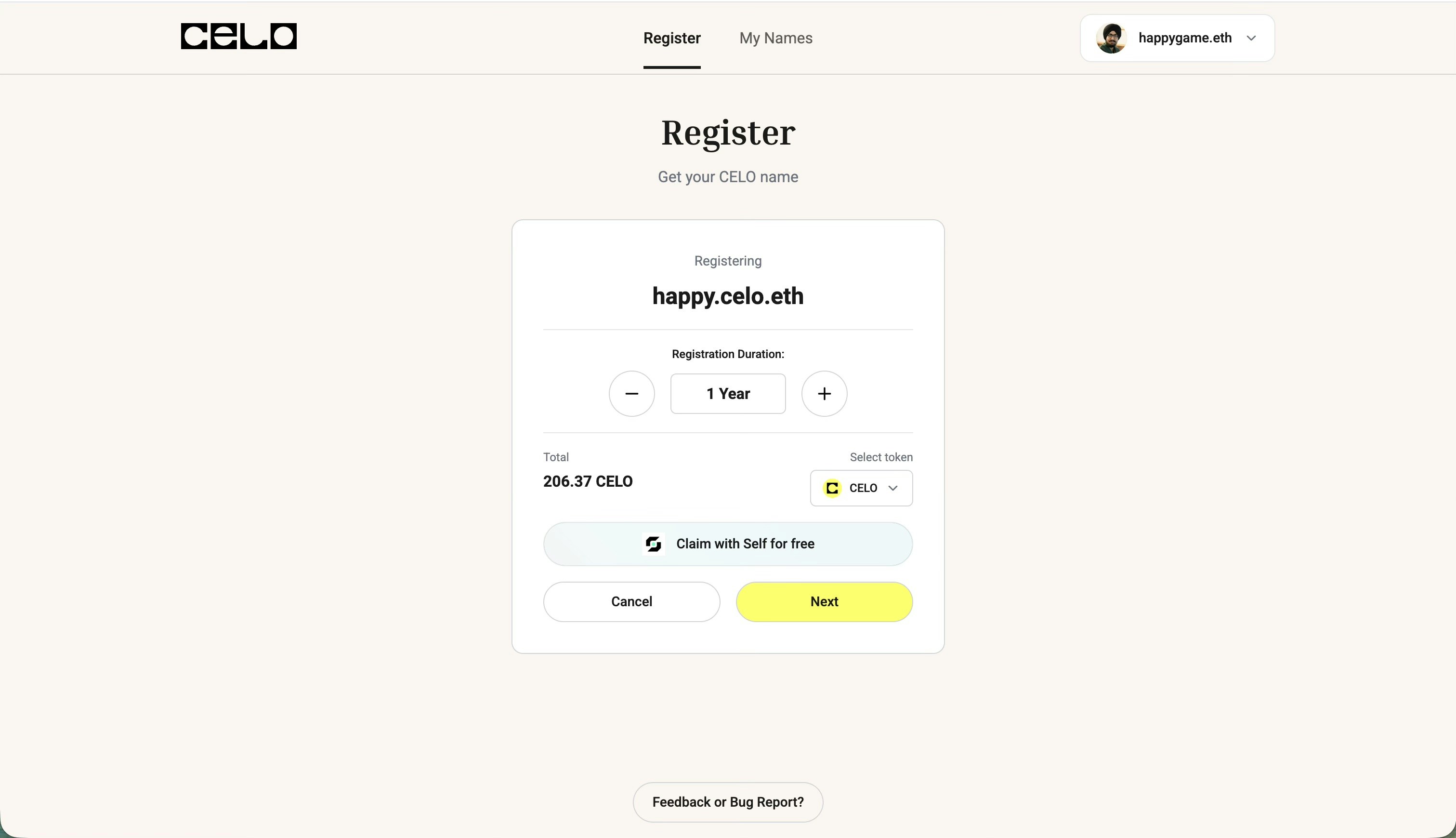
  <Step title="Choose Claim with Self">
    After selecting your name, click on **"Claim with Self for free"** instead of the regular registration option.
    <img src="https://mintcdn.com/celonames/UASCk6RdXS2PF30S/images/self-register/claim-with-self.jpeg?fit=max&auto=format&n=UASCk6RdXS2PF30S&q=85&s=05e9d39f66b84fa48a47a5e17beb5d3e" alt="Claim with Self for free" width="3023" height="1739" data-path="images/self-register/claim-with-self.jpeg" />
  </Step>

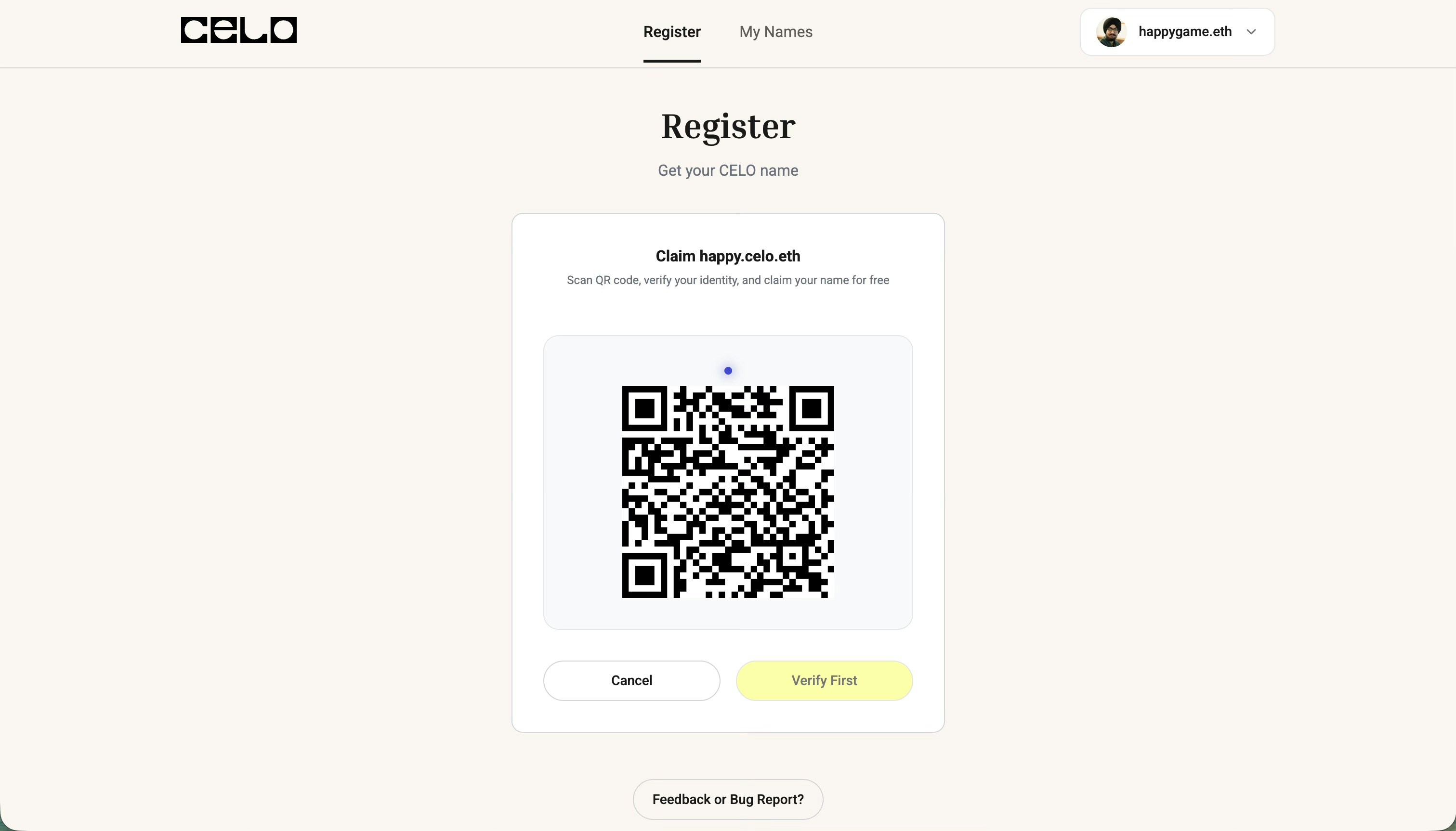
  <Step title="Scan QR Code with Self App">
    A QR code will appear on your screen. Open your Self app on your mobile device and scan this QR code.

    <Note>
      Make sure you have already added and verified a passport or national identity document in your Self app before proceeding.
    </Note>

    <img src="https://mintcdn.com/celonames/UASCk6RdXS2PF30S/images/self-register/claim.jpeg?fit=max&auto=format&n=UASCk6RdXS2PF30S&q=85&s=b04e7cccca5a21cd0c5fad77e3b1a466" alt="QR code to scan with Self app" width="3023" height="1726" data-path="images/self-register/claim.jpeg" />
  </Step>

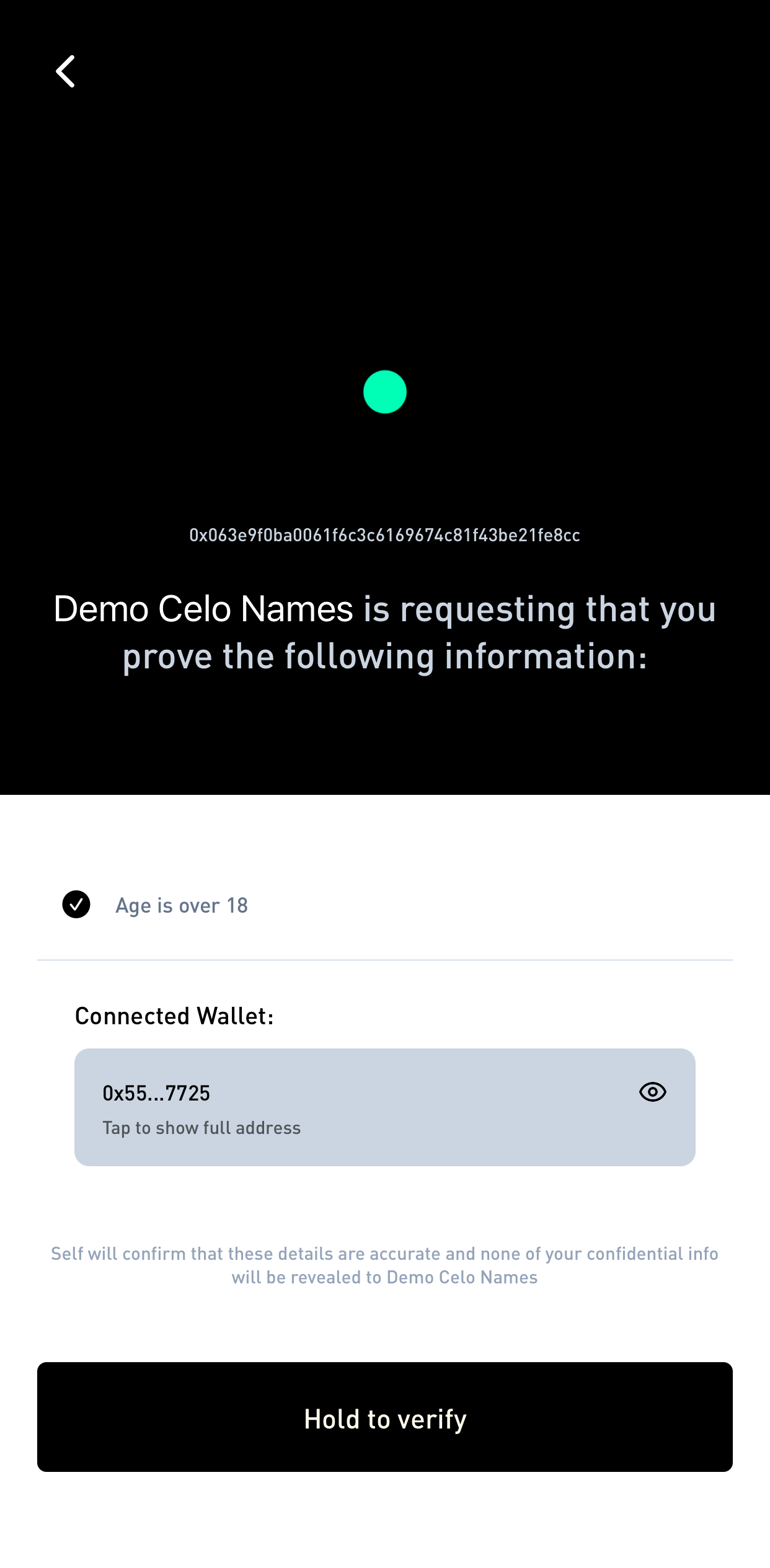
  <Step title="Verify Your Identity">
    Once you scan the QR code, you'll be prompted in the Self app to verify your identity proof.
    <Columns cols={2}>
      <Card title="Verify identity in Self app" icon="panel-left-close">
        <img src="https://mintcdn.com/celonames/UASCk6RdXS2PF30S/images/self-register/verify-self-app.PNG?fit=max&auto=format&n=UASCk6RdXS2PF30S&q=85&s=7ae9a28f8a0d6e129787ee77172c78bc" alt="Verify identity in Self app" width="1242" height="2529" data-path="images/self-register/verify-self-app.PNG" />
      </Card>

      <Card title="Verification confirmed in Self app" icon="panel-right-close">
        <img src="https://mintcdn.com/celonames/UASCk6RdXS2PF30S/images/self-register/verified-self-app.PNG?fit=max&auto=format&n=UASCk6RdXS2PF30S&q=85&s=03c494bcc98521f33d824391e12eb788" alt="Verification confirmed in Self app" width="1242" height="2353" data-path="images/self-register/verified-self-app.PNG" />
      </Card>
    </Columns>
  </Step>

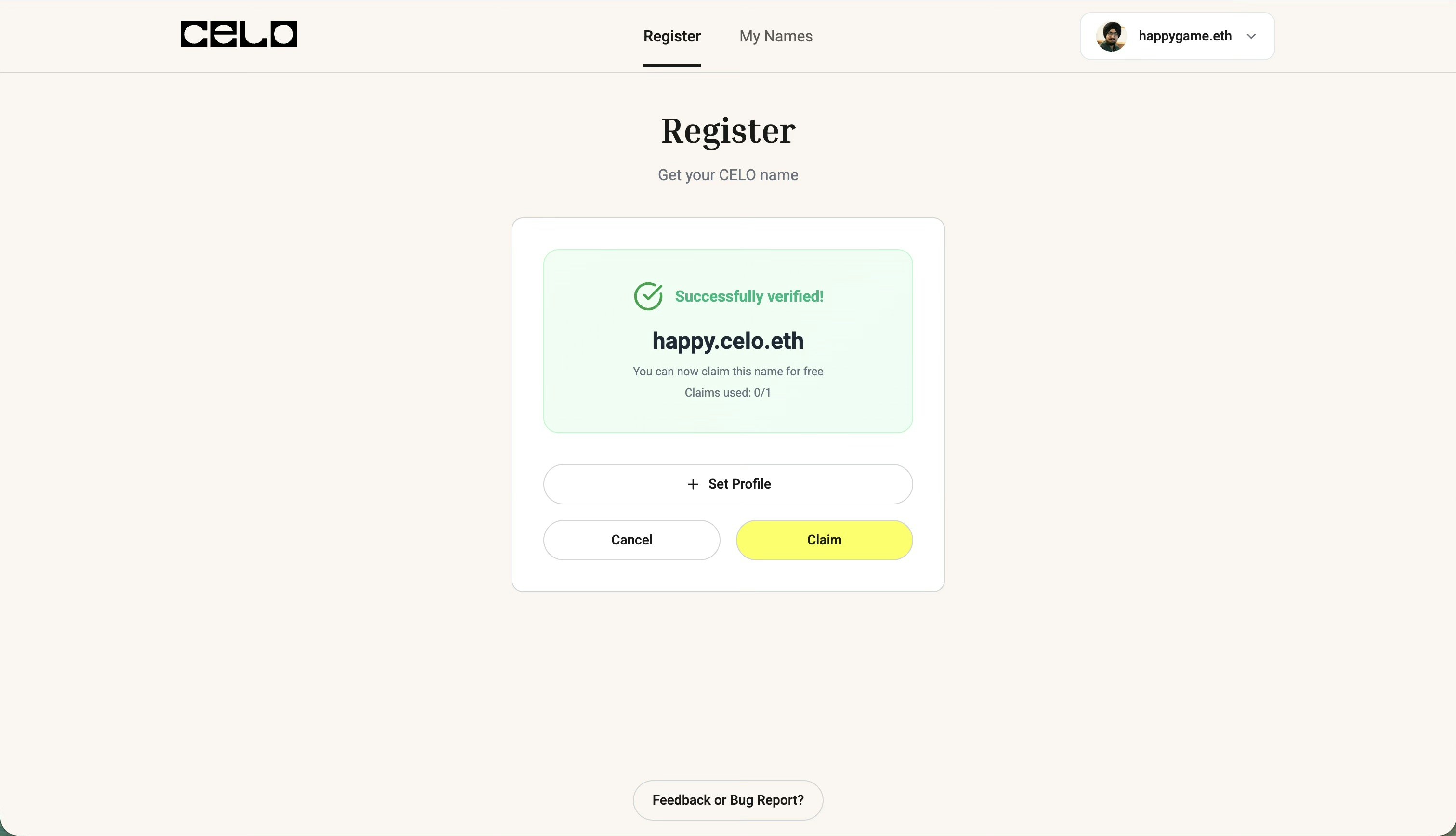
  <Step title="Confirmation on Both Devices">
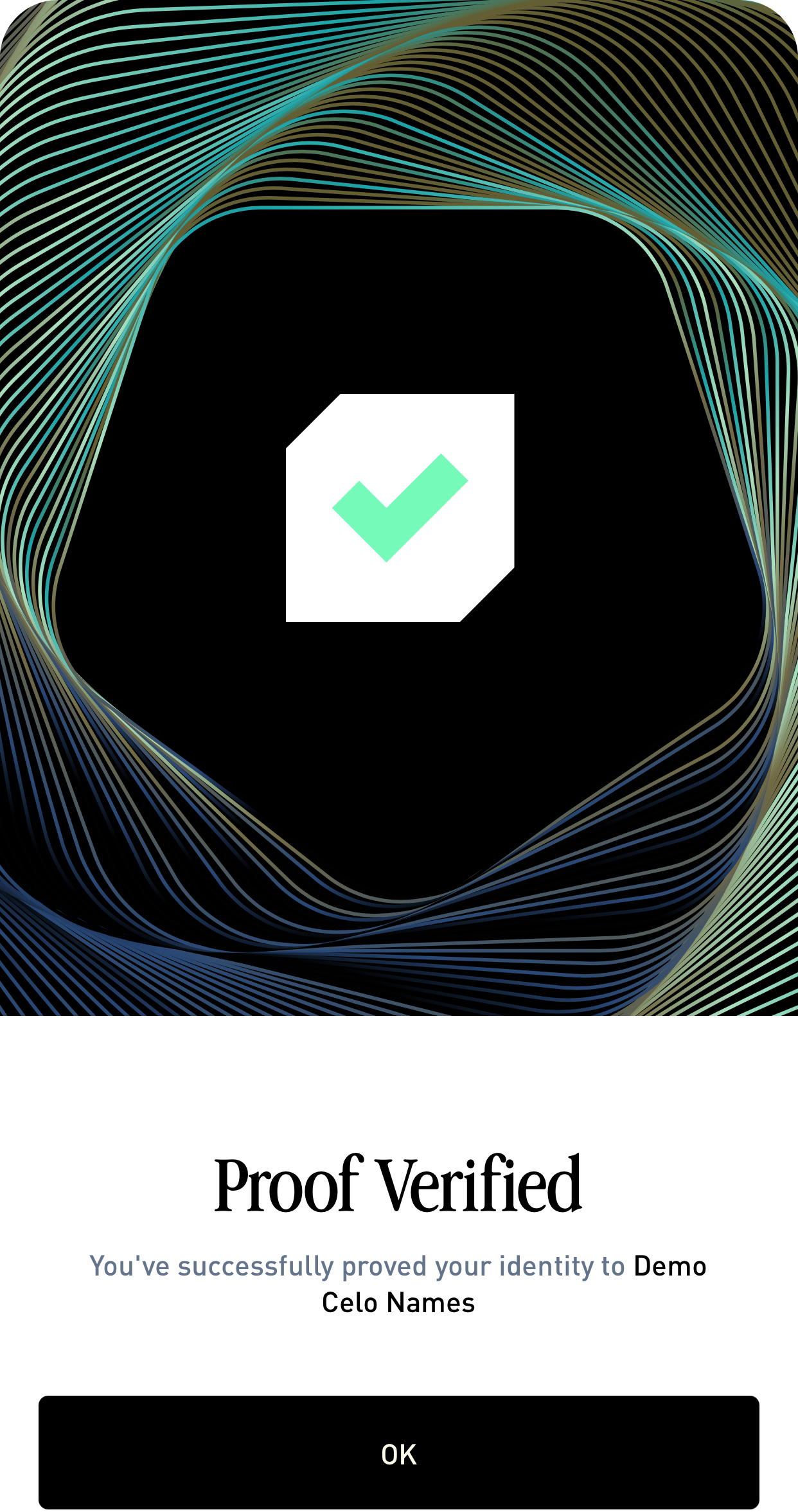
    The verification screen will appear on both your Self mobile app and your browser, showing that your identity has been verified.
    <img src="https://mintcdn.com/celonames/UASCk6RdXS2PF30S/images/self-register/verified.jpeg?fit=max&auto=format&n=UASCk6RdXS2PF30S&q=85&s=256f130866771594f9f2be0a03c300d6" alt="Verification confirmed in browser" width="3023" height="1735" data-path="images/self-register/verified.jpeg" />
  </Step>

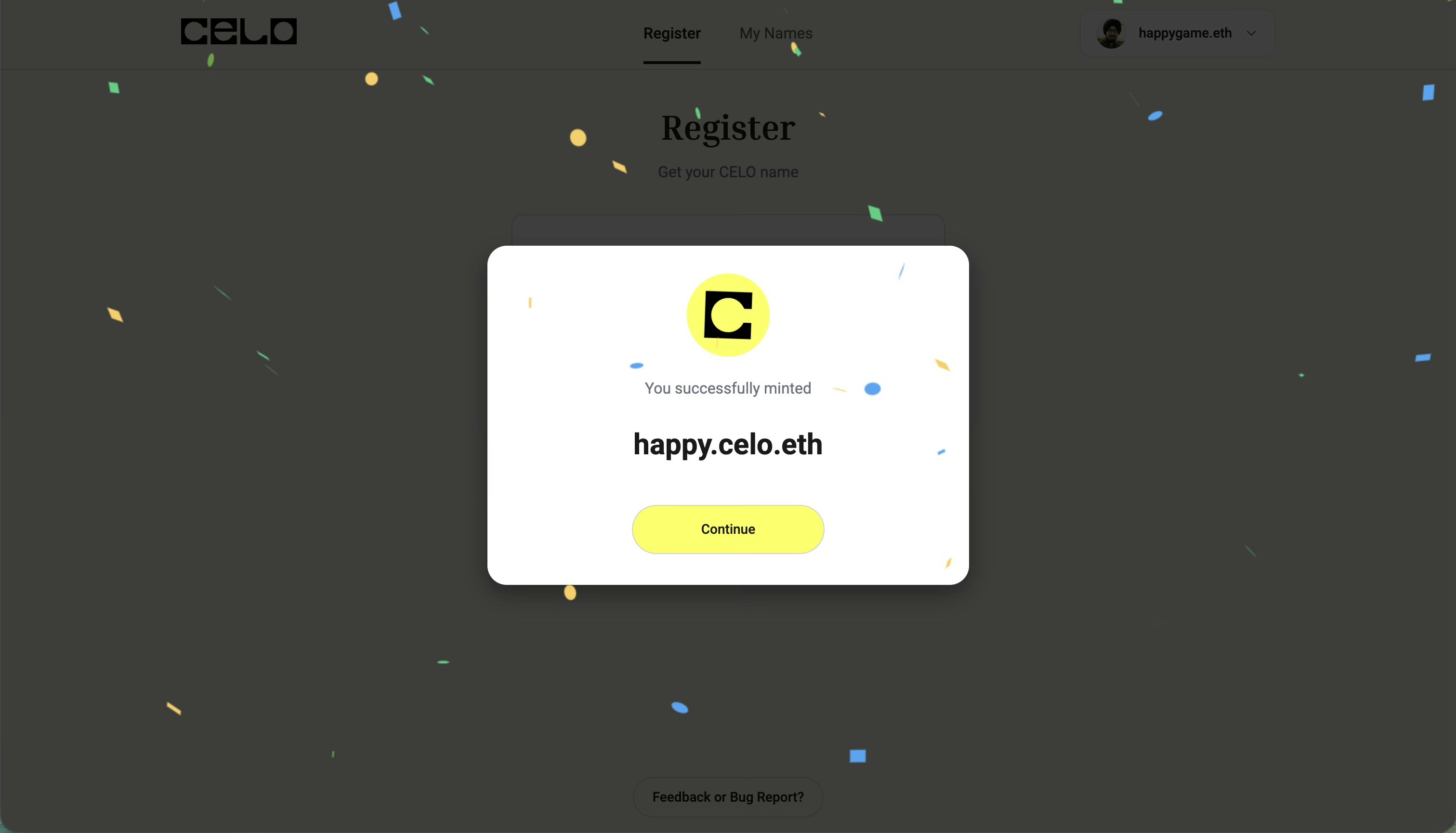
  <Step title="Registration Complete">
    Once verified, complete the registration by confirming the transaction in your wallet. Your Celo Name will be minted for free!
    <img src="https://mintcdn.com/celonames/UASCk6RdXS2PF30S/images/self-register/success.jpeg?fit=max&auto=format&n=UASCk6RdXS2PF30S&q=85&s=ef21ec290f92de7beab17c62b67b4598" alt="Registration successful" width="3023" height="1729" data-path="images/self-register/success.jpeg" />
  </Step>
</Steps>